The official operating guide for the SUCCESS Business
Management & Point of Sale System from Imagine Foundry.
SUCCESS V4.8Merchant DocumentationImagine Foundry
Chapter 1
Introduction
1.1 Welcome to SUCCESS V4.8
Welcome to SUCCESS V4.8, the Imagine
Foundry business management and point-of-sale system
for Second Life® merchants.
SUCCESS was created to bring the essential operations
of a Second Life business together in one integrated
system. From product and customer management to sales
transactions, fulfillment, business-partner revenue
sharing, accounting, and professional business
reporting, SUCCESS provides merchants with a
centralized environment for managing the day-to-day
activities of their virtual-world business.
This Merchant User Manual is designed to help you
become comfortable with SUCCESS and to serve as a
practical reference whenever you need it. The manual
begins by introducing the components included with
SUCCESS and explaining how they work together. It then
guides you through the SUCCESS Merchant Console and
its menus, functions, reports, and common merchant
workflows.
You do not need to memorize SUCCESS to use it
effectively. This manual is intended to remain at your
side as a reference: when you need to perform a task,
locate the appropriate procedure and follow the
documented workflow.
Whether you are making your first sale or reviewing
the performance of an established Second Life
business, SUCCESS is designed to help you manage that
business with confidence, consistency, and clear
records.
Welcome to SUCCESS.
Chapter 2
What's Inside SUCCESS V4.8
2.1 Delivered Component Manifest
SUCCESS V4.8 is supplied with the components listed
in Table 2-1. These components comprise the delivered
SUCCESS system and its supporting product, vendor,
fulfillment, redelivery, Marketplace, revenue-sharing,
demonstration, and sample objects.
Each delivered component will be examined individually
later in this manual, including its contents, function,
configuration, and relationship to the overall SUCCESS
system.
Chapter 3
Vendors
The Vendors subsystem provides the merchant-facing
controls for registering, configuring, reviewing,
and disabling SUCCESS Vendor objects.
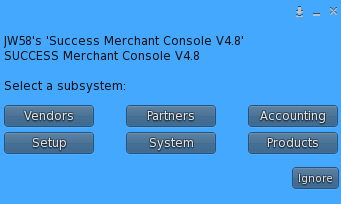
From the SUCCESS Merchant Console V4.8 main menu,
select Vendors to open the
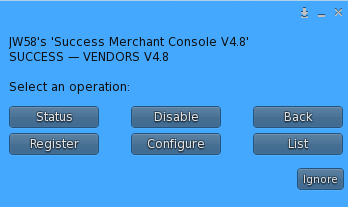
SUCCESS — VENDORS V4.8 menu.
SUCCESS Merchant Console V4.8 main menu.
Select Vendors to open the Vendors subsystem.
SUCCESS — VENDORS V4.8 main menu.
3.1 Vendors Menu
The Vendors menu provides the following commands:
Command
Function
Register
Searches for nearby SUCCESS Vendor objects
and registers eligible Vendors with the
merchant's authoritative Vendor records.
Configure
Opens the Vendor configuration workflow for
STATIC and CATALOG Vendors.
List
Lists the merchant's registered Vendor records,
including Vendor label, Vendor ID, type,
status, object name, region, and position.
Status
Displays an authoritative summary of registered
Vendors by Vendor type and current status.
Disable
Opens the controlled Vendor-disable workflow.
A Vendor must be selected and explicitly
confirmed before its authoritative status is
changed to DISABLED.
Back
Returns to the SUCCESS Merchant Console V4.8
main menu.
3.2 Register Vendors
Select Register to search for nearby
Vendor objects. SUCCESS examines discovered Vendors and
registers eligible objects that are not already present
in the merchant's authoritative Vendor records.
If all discovered Vendor objects are already registered,
SUCCESS reports that condition and returns control to the
Vendors menu without creating duplicate registrations.
3.3 Configure Vendors
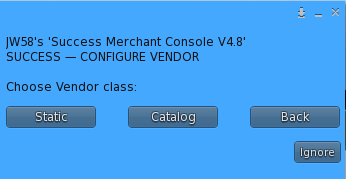
Select Configure to configure a registered
Vendor. SUCCESS supports both
STATIC and
CATALOG Vendor workflows.
Choose whether to configure a STATIC or CATALOG Vendor.
STATIC Vendors
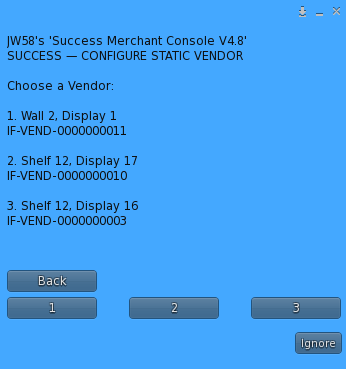
A STATIC Vendor can be selected from the registered Vendor
records and configured through the available Vendor
actions. The V4.8 workflow supports assigning a product
and changing the merchant-facing Vendor label.
Select the registered STATIC Vendor to configure.
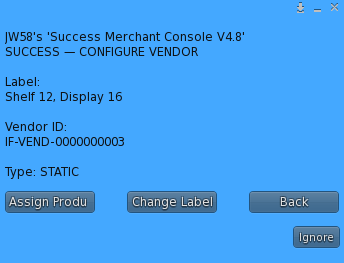
STATIC Vendor configuration screen showing
Assign Product and Change Label actions.
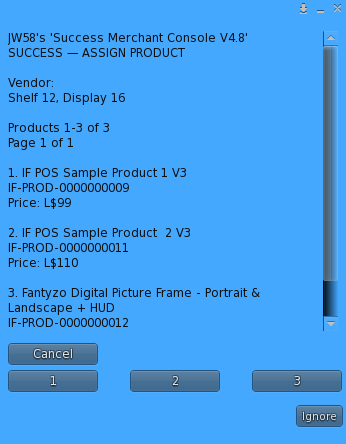
Product assignment verifies the required delivery object
in Primary Fulfillment inventory before SUCCESS saves the
authoritative STATIC Vendor configuration.
Assign Product screen for a STATIC Vendor.
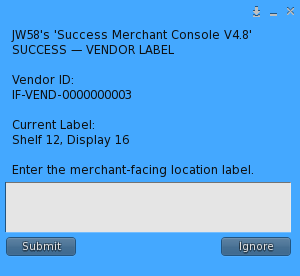
Change the merchant-facing label of a STATIC Vendor.
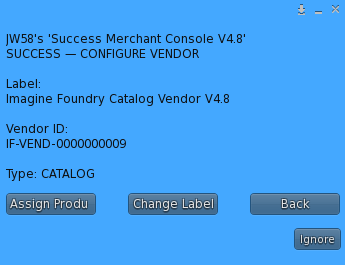
CATALOG Vendors
A CATALOG Vendor can be selected from the registered Vendor
records and configured through the Catalog Vendor
workflow. The V4.8 workflow supports assigning Catalog
products and changing the merchant-facing Vendor label.
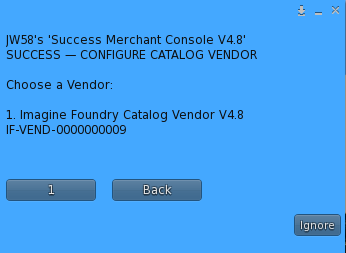
Select the registered CATALOG Vendor to configure.
CATALOG Vendor configuration screen showing
Assign Product and Change Label actions.
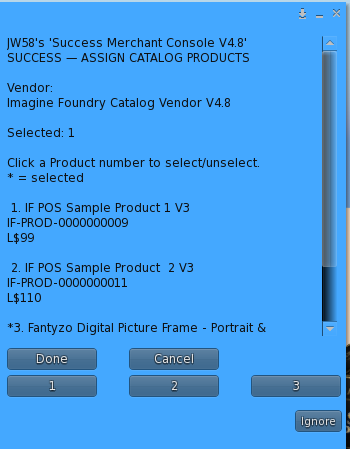
Catalog product assignments are saved to the authoritative
Vendor configuration and the Vendor is reported as
CONFIGURED when the assignment succeeds.
Select one or more products for a CATALOG Vendor.
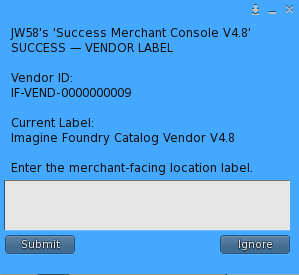
Change the merchant-facing label of a CATALOG Vendor.
3.4 List Vendors
Select List to display the merchant's
registered Vendors.
For each registered Vendor, SUCCESS reports:
Vendor Label
Vendor ID
Vendor Type
Vendor Status
Vendor Object Name
Region
Position
When the operation is complete, SUCCESS reports the total
number of Vendor records listed.
3.5 Vendor Status
Select Status to display a concise
authoritative summary of the merchant's Vendor records.
The status report includes the total number of registered
Vendors, counts by Vendor type, and counts by current
Vendor status.
Vendor types reported by the V4.8 console include
STATIC and
CATALOG. Status totals include
CONFIGURED,
PENDING,
DISABLED, and
OTHER.
3.6 Disable a Vendor
Select Disable to begin the controlled
Vendor-disable workflow.
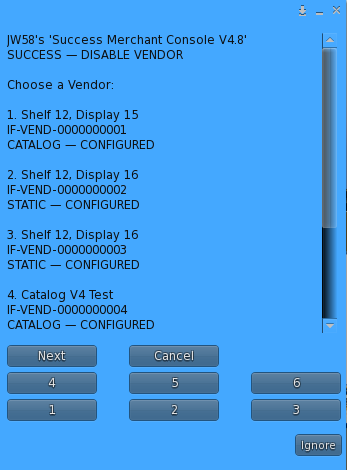
SUCCESS loads eligible registered Vendors and presents
them for selection. Vendors that are already DISABLED
are excluded from the selection list.
Disable Vendor selection screen. Eligible registered
Vendors are presented with label, Vendor ID, type,
and current status.
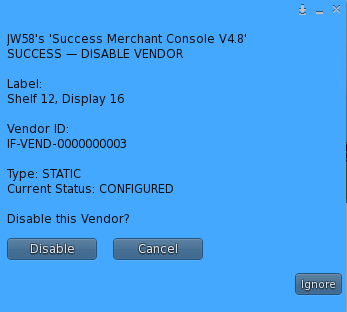
After a Vendor is selected, SUCCESS displays its Vendor
label, Vendor ID, type, and current status. The merchant
must then explicitly select Disable
before any authoritative record is changed.
Disable Vendor confirmation screen. No authoritative
status change occurs until Disable is explicitly
selected.
When confirmed, SUCCESS updates the selected Vendor's
authoritative status to DISABLED and
reports whether the status update passed.
Selecting Cancel leaves the Vendor's
authoritative status unchanged.
3.7 Vendors V4.8 Workflow Summary
The SUCCESS V4.8 Vendors subsystem provides a complete
merchant workflow for Vendor registration, STATIC and
CATALOG configuration, product assignment, Vendor label
management, Vendor listing, status reporting, and
controlled Vendor disabling.
Chapter 4
Products
The Products subsystem provides the merchant-facing
controls for creating, reviewing, preparing, activating,
deleting, and indexing Products in SUCCESS.
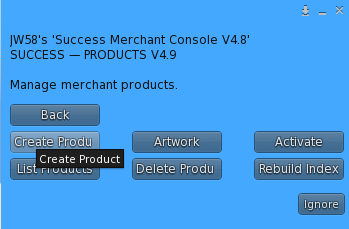
From the SUCCESS Merchant Console V4.8 main menu,
select Products to open the Products
menu.
4.1 Products Menu
The Products menu provides the following merchant
functions:
SUCCESS Products V4.9 menu showing the available
Product-management functions.
Create Product
List Products
Artwork
Activate
Delete Product
Rebuild Index
4.2 Create Product
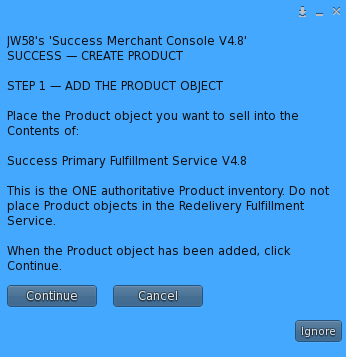
Before registering a Product, place the Product object
that will be delivered to customers into the Contents
of Success Primary Fulfillment Service
V4.8.
Create Product begins by confirming that the Product
object has been placed in the authoritative Primary
Fulfillment Service inventory.
The Primary Fulfillment Service is the authoritative
Product inventory used for normal customer fulfillment.
Do not place normal Product inventory into the
Redelivery Fulfillment Service.
Select Create Product and continue
after the Product object has been added. SUCCESS checks
the Primary Fulfillment Service and requests its
authoritative inventory.
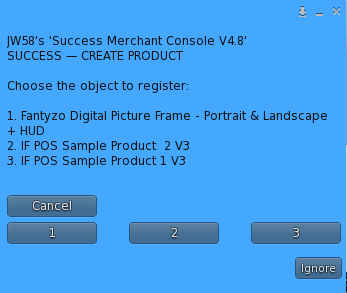
When inventory discovery passes, SUCCESS displays the
available Product objects. Select the object that you
want to register and follow the displayed Product
registration workflow.
Select the Product object discovered in the
authoritative Primary Fulfillment inventory.
4.3 List Products
Select List Products to display the
merchant's registered Products.
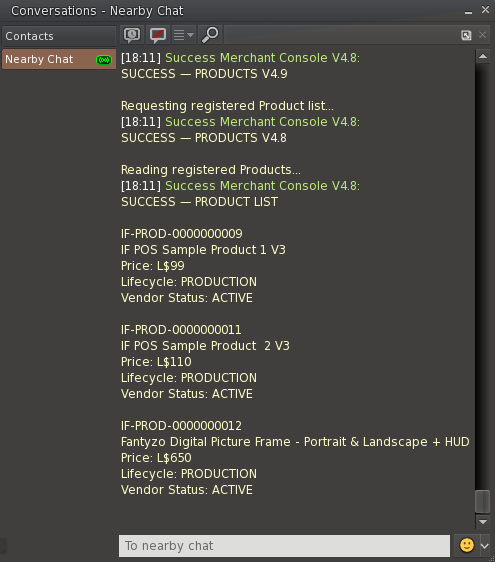
The Product list reports the Product ID, Product name,
price, lifecycle, and Vendor status for each registered
Product. SUCCESS also reports the total number of
registered Products.
List Products reports each registered Product with
its Product ID, name, price, lifecycle, and Vendor
status.
4.4 Product Artwork
Select Artwork to manage the artwork
associated with an ACTIVE Product.
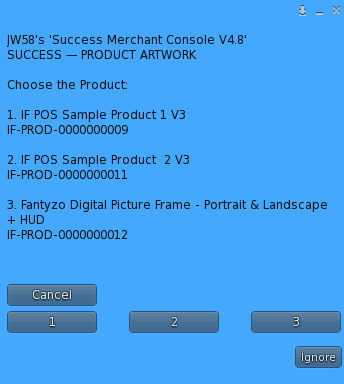
SUCCESS reads the ACTIVE Product Index and presents the
available Products for selection. After selecting a
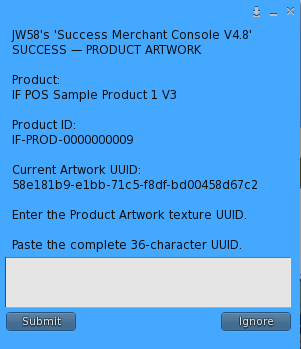
Product, SUCCESS displays its Product name, Product ID,
and current Artwork UUID.
Select the ACTIVE Product whose artwork will be
reviewed or changed.
To change the artwork, enter the complete 36-character
UUID of the Product Artwork texture and submit it when
prompted.
SUCCESS displays the current Artwork UUID and accepts
the complete 36-character UUID of the replacement
Product Artwork texture.
4.5 Activate a Product
Select Activate to begin the Product
activation workflow.
Product activation promotes an eligible Product for
production use and makes it available to the applicable
SUCCESS Product and Vendor workflows.
Review the Product information presented by SUCCESS
before confirming activation.
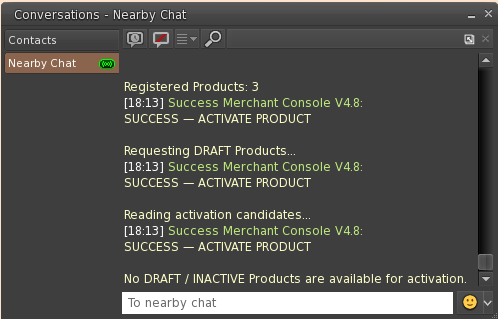
If no DRAFT / INACTIVE Products are eligible for
activation, SUCCESS reports that no activation
candidates are available.
4.6 Delete a Product
Select Delete Product to permanently
remove a Product's authoritative Product record from
SUCCESS.
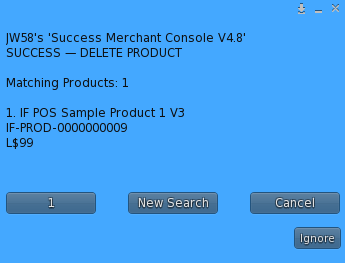
Enter all or part of the Product name, or enter its
Product ID. SUCCESS searches the authoritative Product
records and displays matching Products for selection.
Search for the Product to delete by entering all or
part of its Product name or its Product ID.
When matching authoritative Product records are found,
select the Product that you intend to delete.
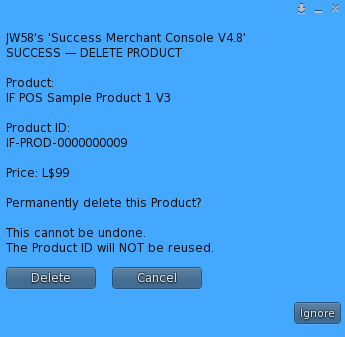
After selecting the Product, carefully review the
Product name, Product ID, and price shown on the
confirmation screen.
Permanent deletion requires explicit confirmation.
SUCCESS identifies the Product and warns that deletion
cannot be undone and the Product ID will not be reused.
Select Delete only when you intend to
permanently remove that Product record. Product
deletion cannot be undone. A deleted Product ID is
not reused.
After the authoritative Product record is deleted,
SUCCESS rebuilds the ACTIVE Product Index so that the
deleted Product is removed from the current Product
index.
Important: Deleting a Product record
from SUCCESS does not delete the corresponding Product
object stored in Success Primary Fulfillment
Service V4.8.
After deleting a Product from SUCCESS, and after
confirming that you no longer require its delivery
object, edit Success Primary Fulfillment
Service V4.8, open its Contents, and manually
remove the corresponding Product object.
This manual inventory-removal step prevents obsolete
delivery objects from remaining in the authoritative
Primary Fulfillment inventory.
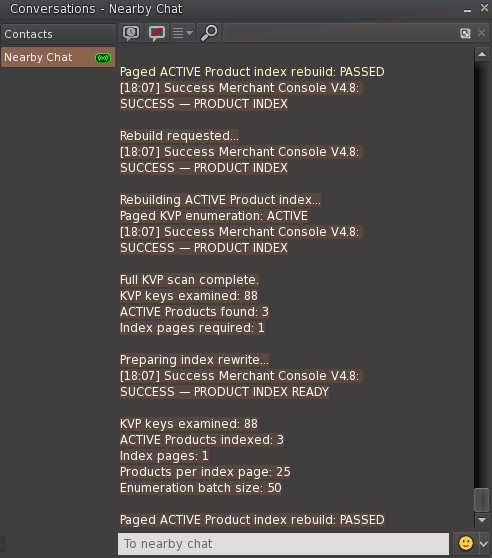
4.7 Rebuild Product Index
Select Rebuild Index to rebuild the
ACTIVE Product Index from the authoritative Product
records.
The Product Index supports SUCCESS functions that need
the current set of ACTIVE Products. SUCCESS reports
whether the rebuild operation passes.
Rebuild Index reports the authoritative KVP scan,
ACTIVE Products indexed, index-page information,
and the final rebuild result.
4.8 Products Workflow Summary
The SUCCESS Products subsystem provides the merchant
workflow for registering Products from authoritative
Primary Fulfillment inventory, reviewing Product
records, managing Product artwork, activating Products,
permanently deleting Product records, and rebuilding
the ACTIVE Product Index.
Chapter 5
Accounting
SUCCESS Business Accounting provides merchant-facing
tools for reviewing business performance, examining
completed sales, recording and reviewing expenses, and
generating professional accounting reports.
SUCCESS accounting displays and records applicable
transaction times using SLT (Second Life
Time).
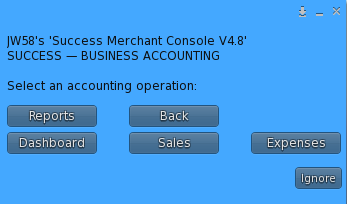
5.1 Business Accounting Menu
From the SUCCESS Merchant Console V4.8 main menu,
select Accounting to open
SUCCESS — BUSINESS ACCOUNTING.
The Business Accounting menu provides access to the
Dashboard, Sales, Expenses, and Accounting Reports.
5.2 Accounting Dashboard
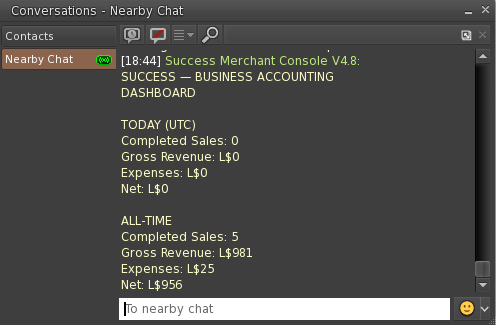
Select Dashboard for a concise
accounting summary. SUCCESS presents both
Today (SLT) and
All-Time results, including completed
sales, gross revenue, expenses, and net results.
SUCCESS Business Accounting Dashboard showing
Today (SLT) and All-Time accounting summaries.
Documentation Note: The values shown
in this Dashboard example include early SUCCESS setup
and system-testing data. They are included to
demonstrate the Dashboard format and should not be
interpreted as representative merchant business
results.
5.3 Sales Ledger
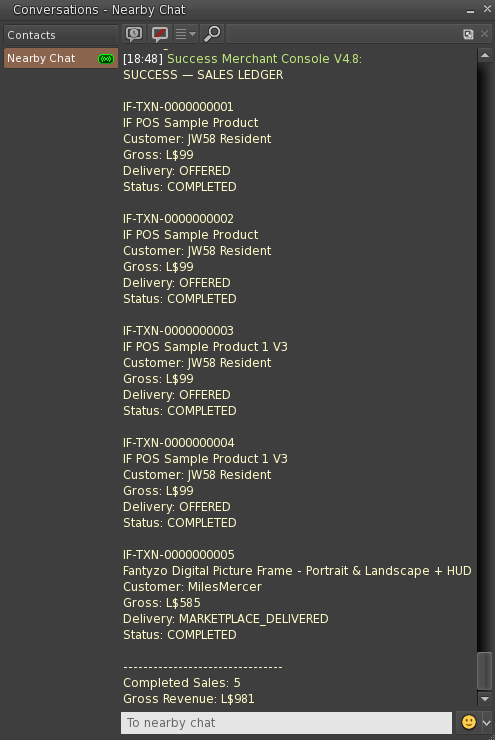
Select Sales to review completed
SUCCESS sales transactions. The Sales Ledger identifies
each transaction and provides the merchant with the
associated Product, customer, amount, delivery result,
and transaction status.
The Sales Ledger provides transaction-level detail
for completed SUCCESS sales.
Documentation Note: The Sales Ledger
shown above contains transactions created during
SUCCESS development and system testing. The customer
names, transaction IDs, Products, and L$ amounts shown
are retained test records used to demonstrate the
Sales Ledger workflow and reporting format.
5.4 Expenses
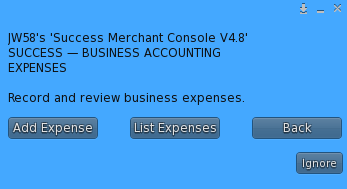
Select Expenses to open the SUCCESS
Expenses menu. From this menu, the merchant can record
a new business expense or review the current Expense
Ledger.
The Expenses menu provides Add Expense and
List Expenses functions.
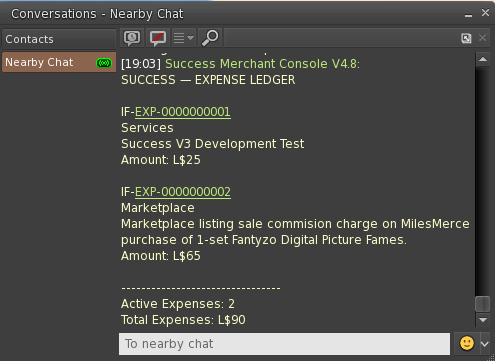
Select List Expenses to display the
active Expense Ledger. SUCCESS reports each Expense ID,
category, amount, description, and applicable
accounting information, followed by ledger totals.
Example Expense Ledger containing recorded business
expenses and the resulting total expense amount.
The example ledger includes an early development/test
expense together with a Marketplace expense recorded
during the documentation workflow.
5.5 Add an Expense
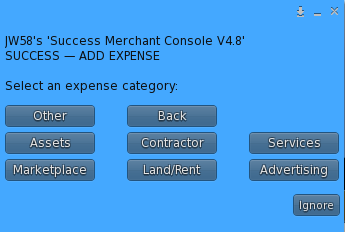
Select Add Expense to record a business
expense. SUCCESS first asks the merchant to select an
expense category.
Select the category that best describes the business
expense.
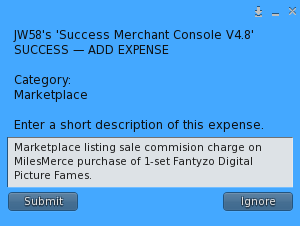
After selecting the category, enter a clear description
of the expense.
Enter a description that clearly identifies the
purpose of the expense.
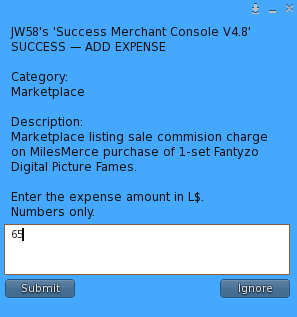
SUCCESS then requests the expense amount in Linden
dollars (L$).
Enter the L$ amount of the expense.
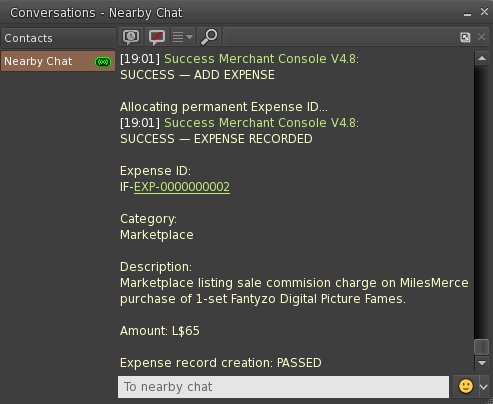
When the expense is successfully recorded, SUCCESS
assigns an authoritative Expense ID and reports the
saved category, description, amount, and creation
result.
Successful expense creation showing the assigned
Expense ID and authoritative expense details.
The updated Expense Ledger immediately reflects the
newly recorded expense and updated ledger totals.
5.6 Accounting Reports
Select Reports from Business Accounting
to open the Accounting Reports menu.
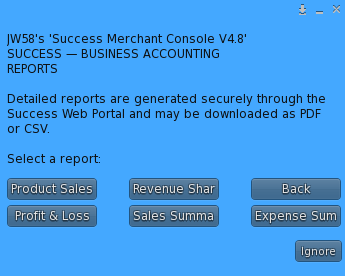
SUCCESS Accounting Reports menu.
SUCCESS provides five Business Accounting reports:
Product Sales,
Revenue Share,
Profit & Loss,
Sales Summary, and
Expense Summary.
All five reports use the same report-generation
workflow. Select the desired report and SUCCESS gathers
the applicable authoritative accounting records,
processes the report, and securely generates both
PDF and CSV versions.
This User Manual demonstrates the common reporting
workflow with the Product Sales
report. The same generation and retrieval process
applies to the other Accounting reports.
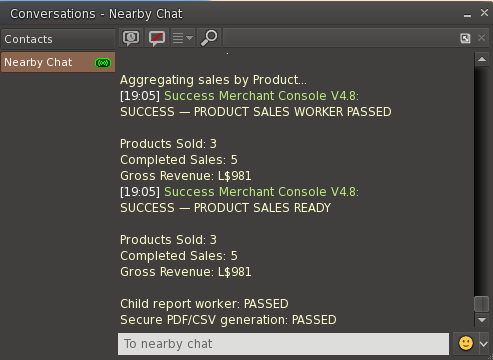
Product Sales report processing and successful
secure PDF/CSV generation.
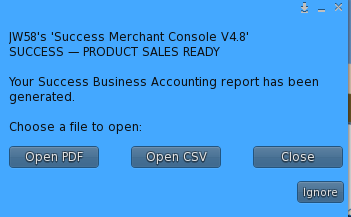
When generation is complete, SUCCESS provides
Open PDF and Open CSV options.
5.7 PDF and CSV Reports
The PDF version is intended for
convenient viewing, printing, archiving, and
presentation as a finished business report.
The CSV version contains the report
data in a spreadsheet-compatible format. CSV is useful
when the merchant wants to perform additional analysis,
manipulate the data, import it into other business
software, or maintain external accounting records.
PDF is used for the User Manual demonstration because
it will typically be the more convenient format for
viewing a finished SUCCESS report. CSV remains
available whenever spreadsheet-compatible data is
required.
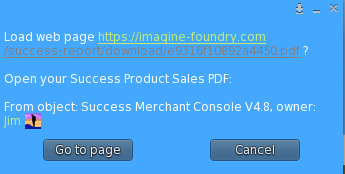
SUCCESS securely hands the generated report to the
merchant for viewing.
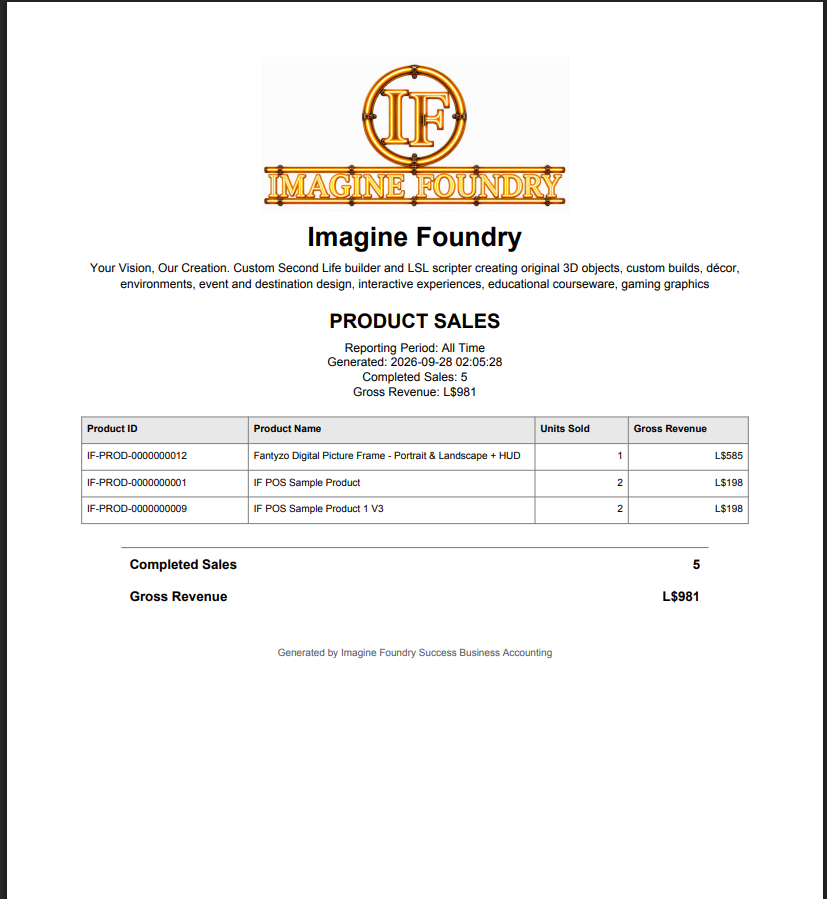
Example SUCCESS Product Sales PDF showing the
reporting period, completed sales, gross revenue,
and Product-level sales results.
Documentation Note: The Product Sales
report shown in this manual contains SUCCESS
development, testing, and demonstration transaction
data. Its figures illustrate the report structure and
should not be interpreted as representative merchant
business results.
5.8 Accounting Workflow Summary
SUCCESS Business Accounting provides an integrated
merchant workflow for reviewing current and historical
business performance, examining completed sales,
recording and reviewing expenses, and generating
professional PDF and CSV accounting reports from
authoritative SUCCESS records.